Control your home’s temperature and monitor your system anytime, anywhere, with the app that keeps comfort and efficiency at your fingertips.
Install the Jetson Home App
To get started, visit jetsonhome.com/start on your mobile phone.
You’ll be guided to download and install the Jetson Home App for your device.
Once installed, sign in using the email address associated with your Jetson system to access your home and system settings.
Connect your Jetson Hub to Wi-Fi
Before you can use the Jetson Home App to control your system, your Jetson Hub must be connected to Wi-Fi. You’ll see an in-app notice prompting you to begin this setup as soon as you sign in.
Connecting your Hub to Wi-Fi enables:
Follow the in-app steps to start Wi-Fi setup, or review the full instructions and app permission requirements on the Jetson Hub Help Page.
App Structure Overview
The Jetson Home App is organized into three main tabs that make it simple to manage your home:
 Home
Home
Control your home’s temperature settings, create or edit schedules, monitor your air quality, and view system monitoring.
The Home tab is where you’ll spend most of your time adjusting comfort settings, checking your air quality, and keeping an eye on your system’s performance.
 Energy (coming soon)
Monitor your home’s total energy usage, including your Jetson system.
The Energy tab will help you understand how much energy your system uses and identify opportunities to save.
 Account
View home details, manage users (coming soon), and quickly access support and feedback tools.
From the Account tab, you can find help documentation, contact customer support, or submit feature requests directly from the app.
Home Tab Overview
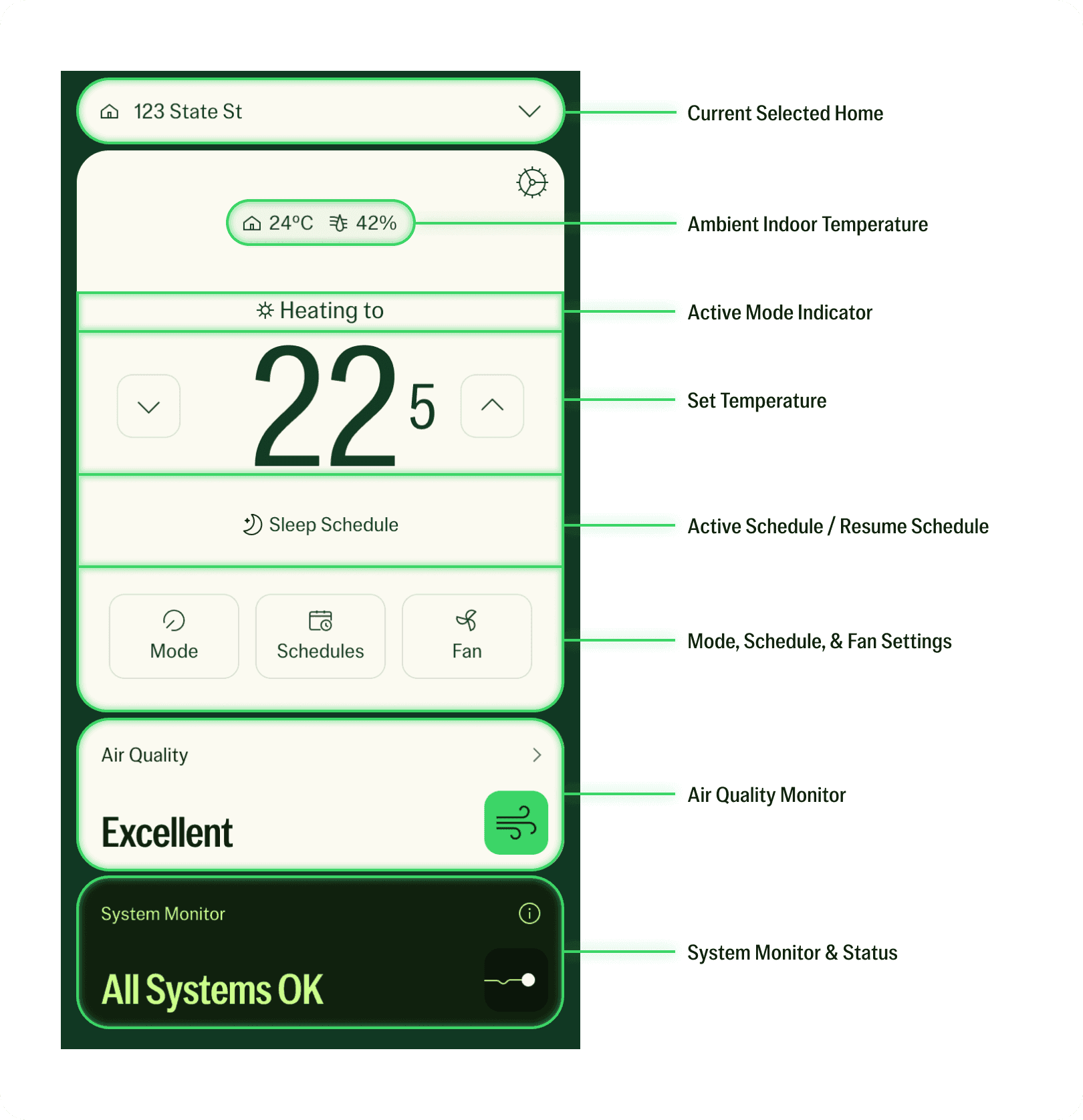
The Home tab is where you control your system and view live information about your home’s temperature and operation. Use the diagram below to get familiar with the main controls and indicators.
Key elements:
- Current Selected Home – Shows the home’s address of the system currently being viewed.
- Ambient Indoor Temperature – Displays the current indoor temperature and humidity.
- Active Mode Indicator – Shows which mode (heating or cooling) is currently running.
- Set Temperature – Adjust your desired temperature setpoint.
- Active Schedule / Resume Schedule – Displays which schedule (Home, Sleep, Away, etc.) is currently active, or lets you resume your regular schedule once it ends.
- Mode, Schedule, & Fan Settings – Quick access to mode selection, scheduling, and fan control.
- Air Quality Monitor – Shows your home’s current Air Score at a glance. Tap to view detailed pollutant readings and history.
- System Monitor & Status – View the health and connectivity status of your Jetson system.
How to Change the Set Temperature
- From the Home tab, locate the climate card at the top.
- The large number shows your current setpoint temperature.
- Tap the up (▲) or down (▼) arrows to change the setpoint.
- You’ll see a label like “Cooling to 22.5°” or “Heating to 21°” based on your selected mode and temperature unit setting.
Your thermostat will update instantly.
How to Change the System Mode (Heat, Cool, Auto, Off)
- From the climate card, tap the Mode Selection button showing your current mode (e.g. Cool).
- Choose from:
- The mode will update in a few seconds across both the app and the thermostat.
When your system is actively heating or cooling, the active mode indicator in the Home tab displays the current mode, and the corresponding icon on the thermostat (heat, cool, etc.) shows a gentle breathing animation to indicate operation.
Scheduling Your Home’s Temperature
The Schedules feature lets you automate temperature changes throughout the day or week, for comfort when you’re home, and savings when you’re not.
 Set Your Home Preset (Required Before Scheduling)
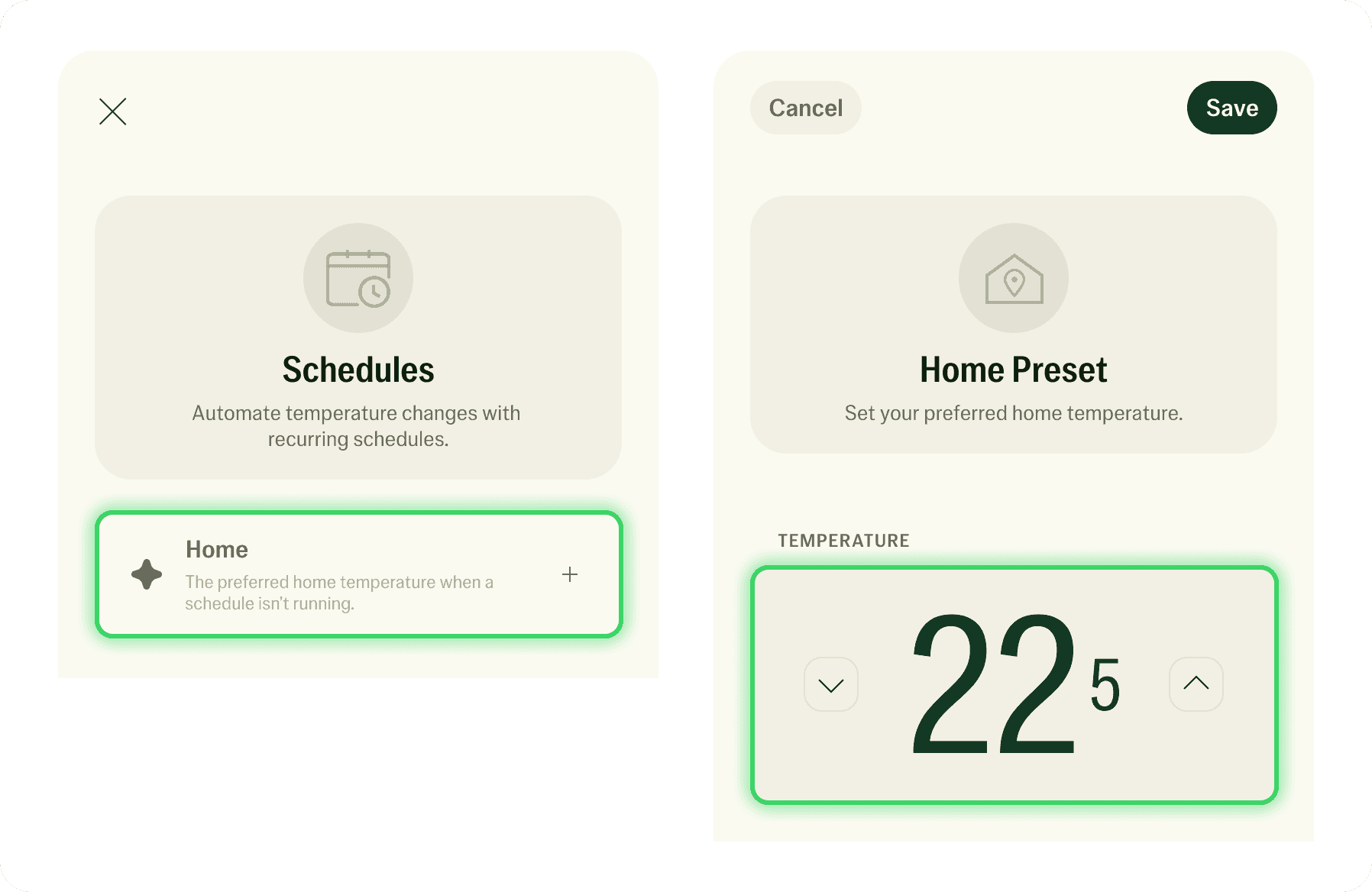
Before creating any schedules, you’ll need to set your Home Preset temperature.
This is the default temperature your system will maintain whenever no other schedule is running.
To set your Home Preset:
- From the Home tab, tap Schedules.
- Tap Home under the Schedules list.
- Adjust the temperature using the ▲ / ▼ arrows.
- Tap Save to confirm.
Your Home Preset will automatically take effect between scheduled periods — for example, after your Sleep or Away schedule ends.
 Sleep Schedule
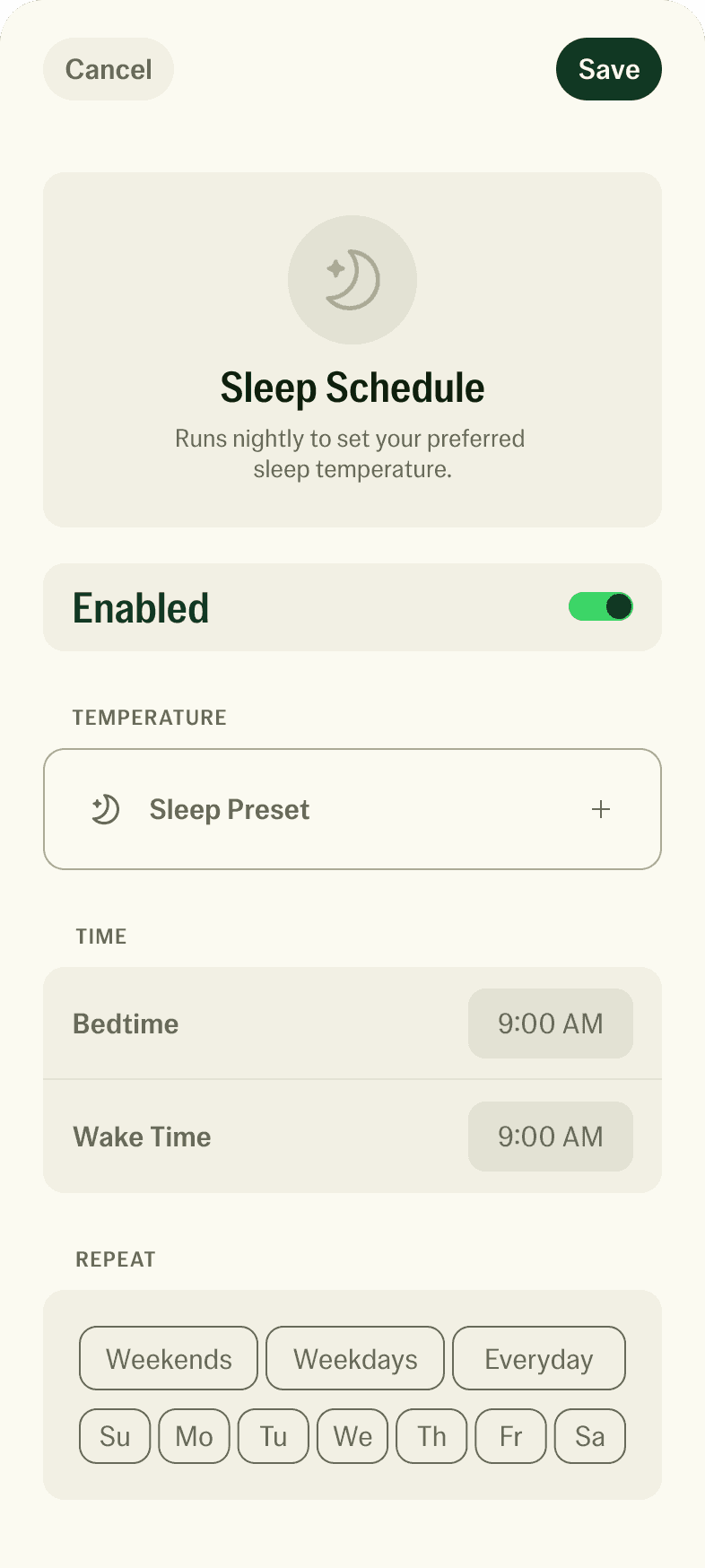
The Sleep Schedule lets you set a comfortable nighttime temperature for restful sleep.
To set a Sleep Schedule:
- Tap Sleep in the Schedules list.
- Toggle Enabled to turn it on.
- Choose your Sleep Preset temperature.
- Set your Bedtime and Wake Time.
- Choose which days to repeat (e.g., Weekdays, Weekends, or Everyday).
- Tap Save to confirm.
Once active, the Sleep icon will appear under the setpoint on the Home tab, and your thermostat will automatically adjust to your preferred sleep temperature during the set times.
You can create multiple Sleep Schedules for different days of the week — for example, one for weekdays and a separate one for weekends with different temperatures or times.
Quiet Sleep
Quiet Sleep is a setting within the Sleep Preset that keeps the fan running quietly overnight by reducing fan speed, so it won't disturb your sleep. You can toggle it on or off from the Sleep Preset screen in the Schedules tab.
 Away Schedule
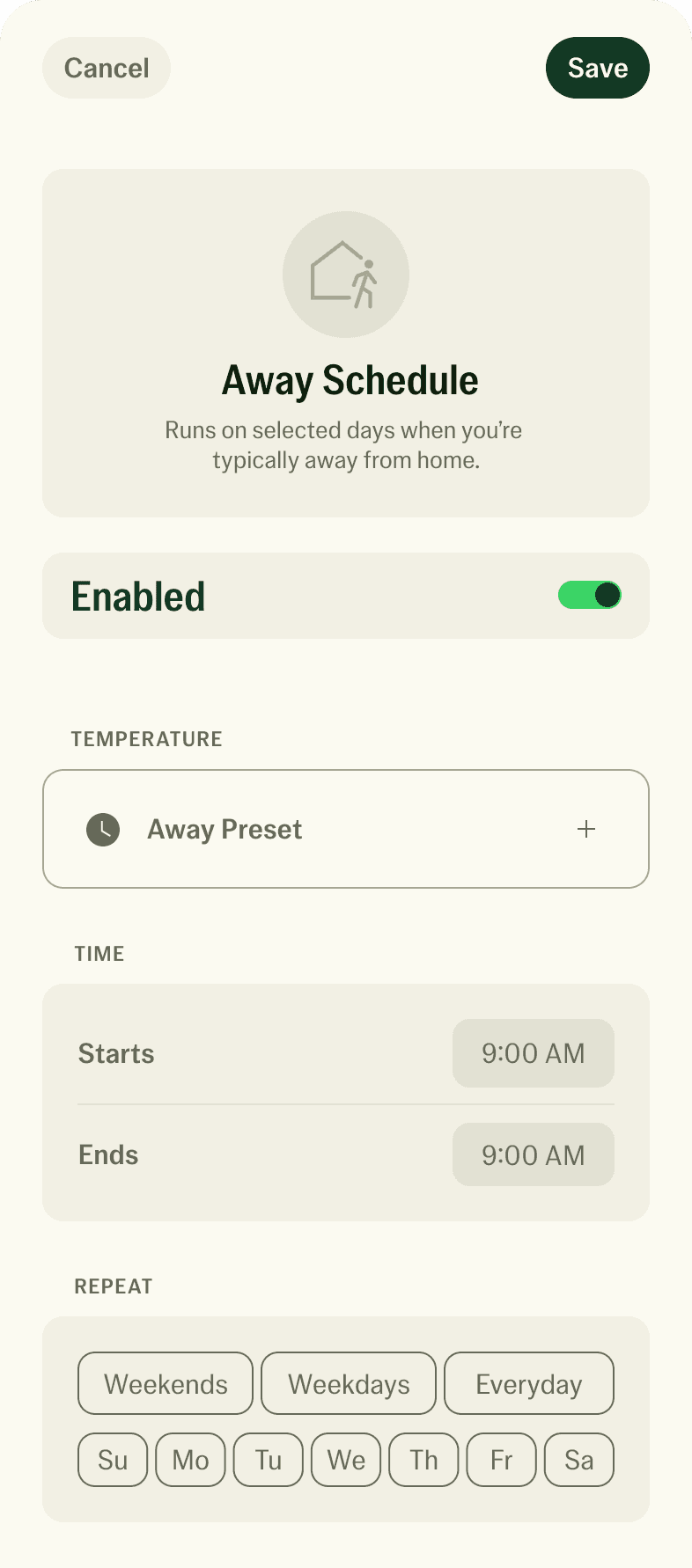
The Away Schedule helps conserve energy while you’re out by setting an efficient, lower-usage temperature.
To set an Away Schedule:
- Tap Away in the Schedules list.
- Toggle Enabled to turn it on.
- Set your Away Preset temperature.
- Choose the Start and End times for when you’ll be away.
- Select repeat days (Weekdays, Weekends, or custom days).
- Tap Save to confirm.
Your system will automatically return to your Home Preset once the Away Schedule ends.
 Custom Schedules
Custom Schedules let you create schedules tailored to your own routines and needs — beyond the built-in Sleep and Away options. You can set a name, temperature, start and end times, and choose which days of the week it repeats.
Use custom schedules for routines like a morning warm-up, a gym session, a nap, or any other time when you'd like your home at a specific temperature.
To create a Custom Schedule:
- From the Home tab, tap Schedules.
- Tap Add Schedule.
- Give your schedule a name.
- Set your desired temperature.
- Set the Start and End times.
- Choose which days to repeat.
- Tap Save to confirm.
 Vacation Schedule
The Vacation Schedule is designed for longer trips when no one is home. It lets you set a single temperature for a specific date and time range, keeping your home at an efficient setpoint while you're away.
To set a Vacation Schedule:
- Tap Vacation in the Schedules list.
- Set your Vacation temperature.
- Set the Start date and time.
- Set the End date and time.
- Tap Save to confirm.
How to View and Edit Existing Schedules
From the Home tab, tap Schedules to view all existing schedules.
You can:
When a schedule is running:
How to Adjust Fan Settings
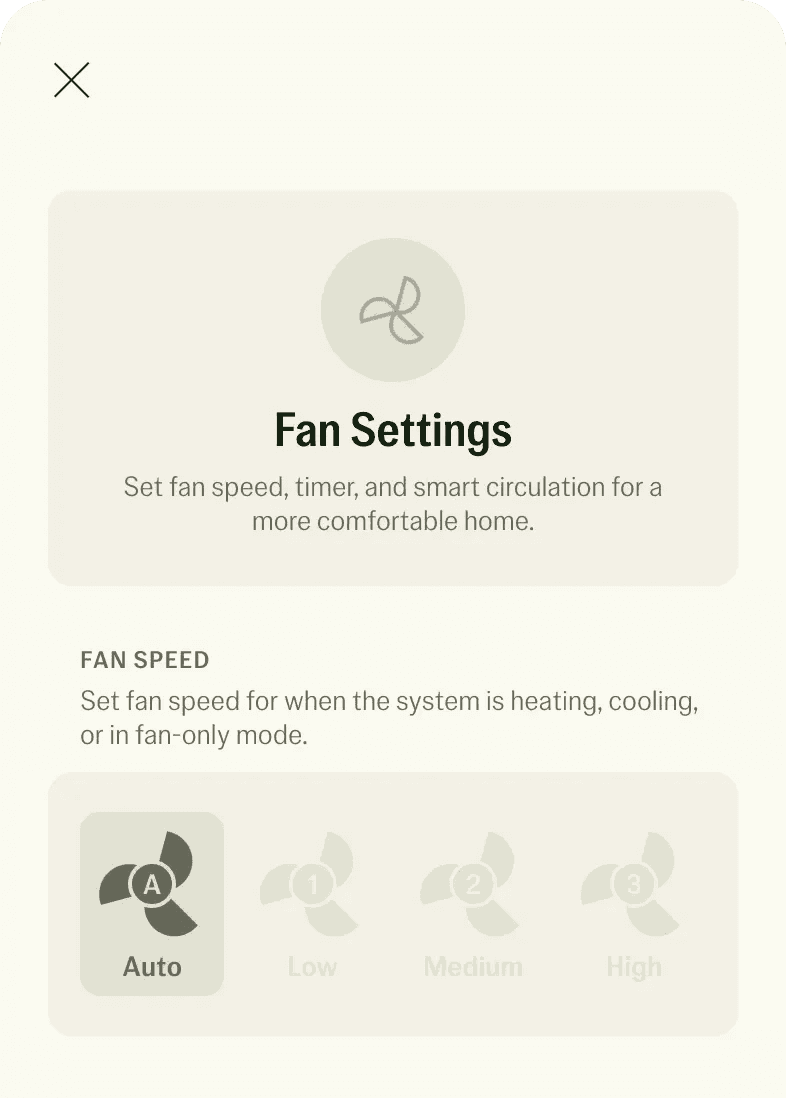
The Fan Settings screen lets you set your preferred fan speed for heating, cooling, or fan-only operation.
- From the Home tab, tap the Fan button.
- Choose your fan speed:
Fan-Only Mode
If your system is set to Fan Only, the fan runs continuously at the selected speed. This can help circulate air throughout your home without active heating or cooling.
Fan Speed In Heating or Cooling Modes
When your system is in Heat or Cool mode, the fan speed you select determines how strongly air circulates when the system is actively running.
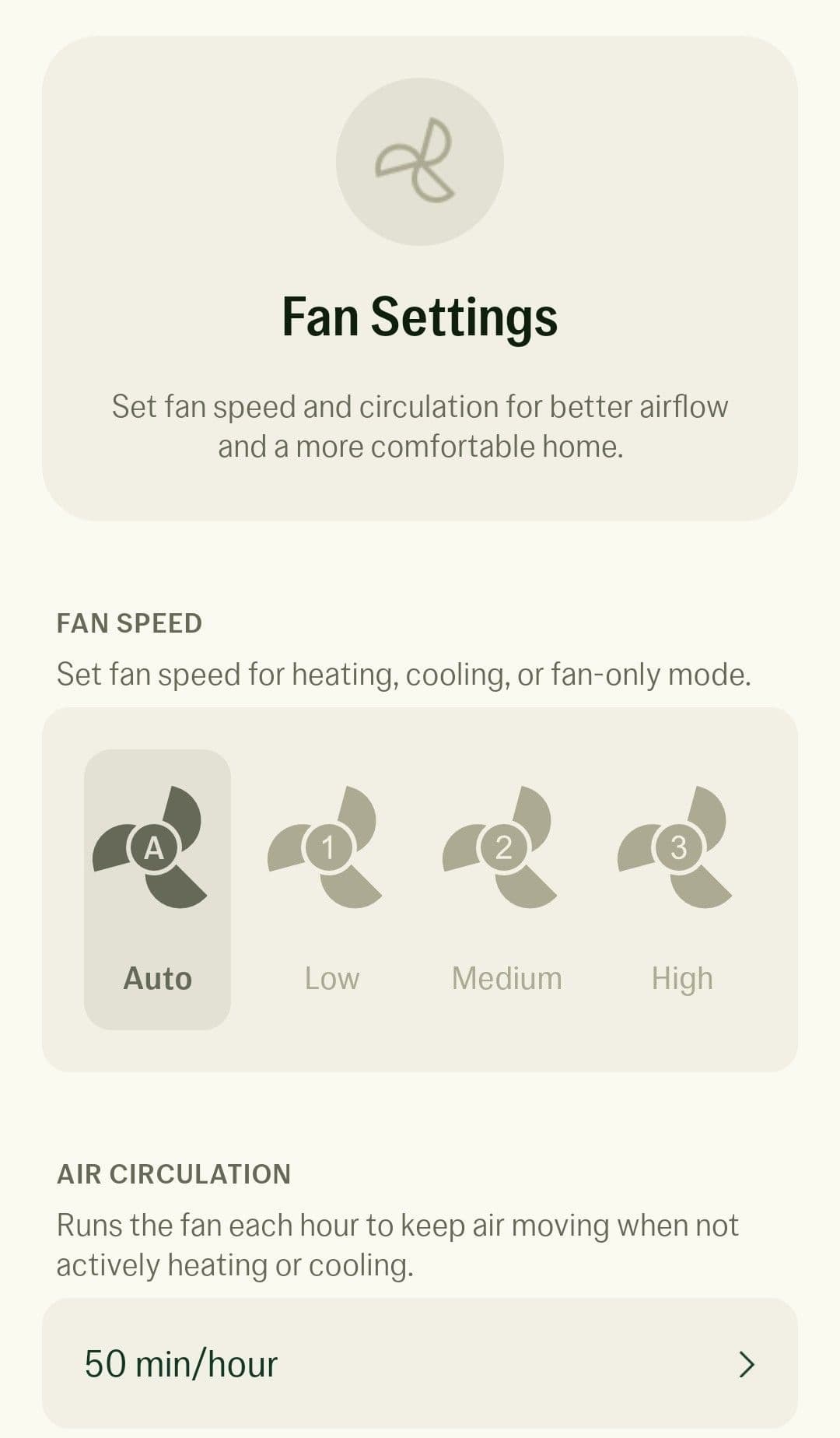
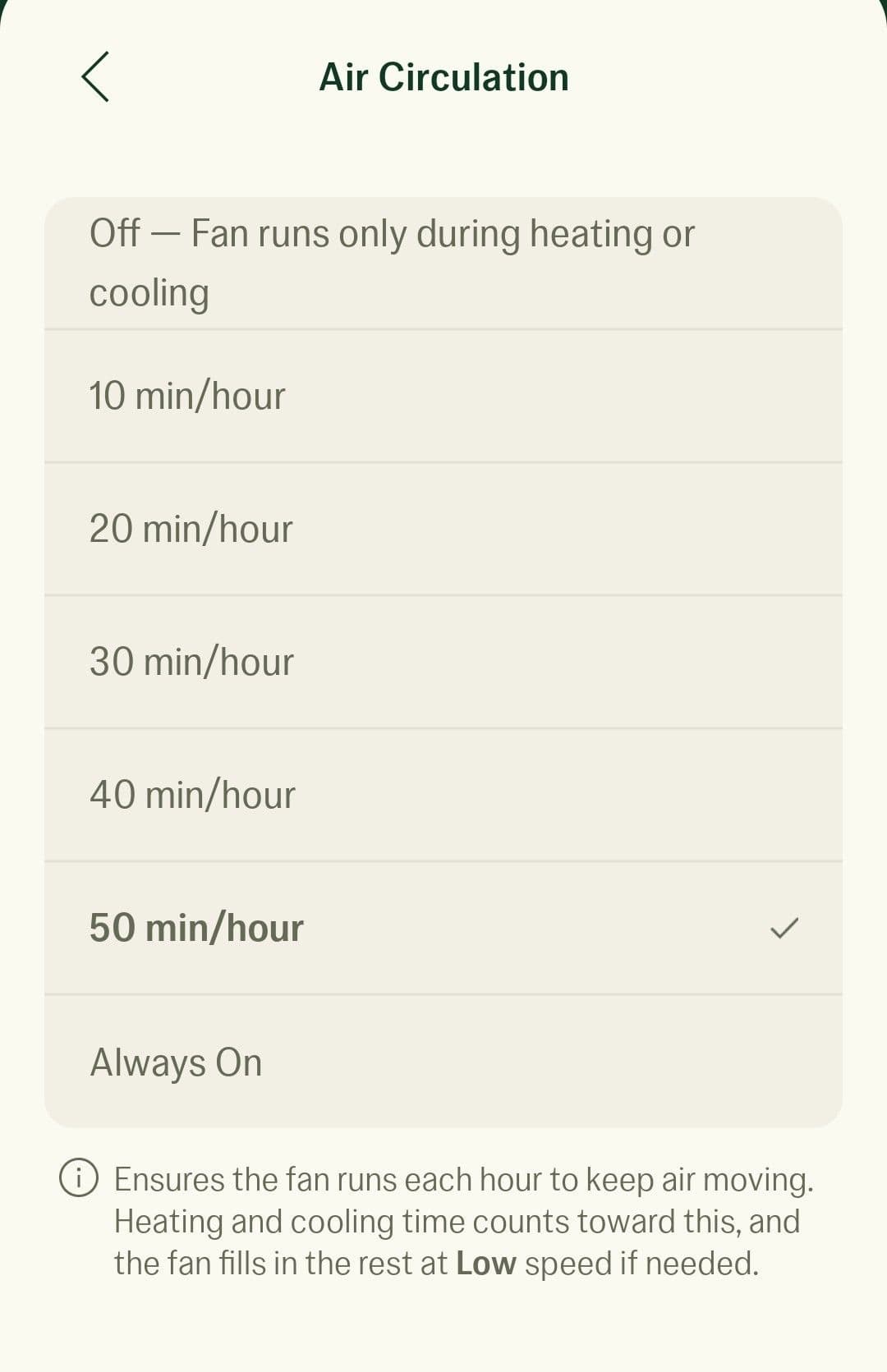
Fan Air Circulation Settings
This lets you set how long the fan circulates air per hour when not actively heating or cooling.
Air Quality Overview
The Air Quality card on the Home tab shows your home's current indoor air quality at a glance. For a full breakdown of what each pollutant means and how to improve your home's air quality, see Air Quality Monitoring.
The Air Score is your home's overall indoor air quality (Excellent, Good, Poor, or Unhealthy), calculated from three monitored pollutants: PM2.5, CO₂, and TVOC.
System Monitor
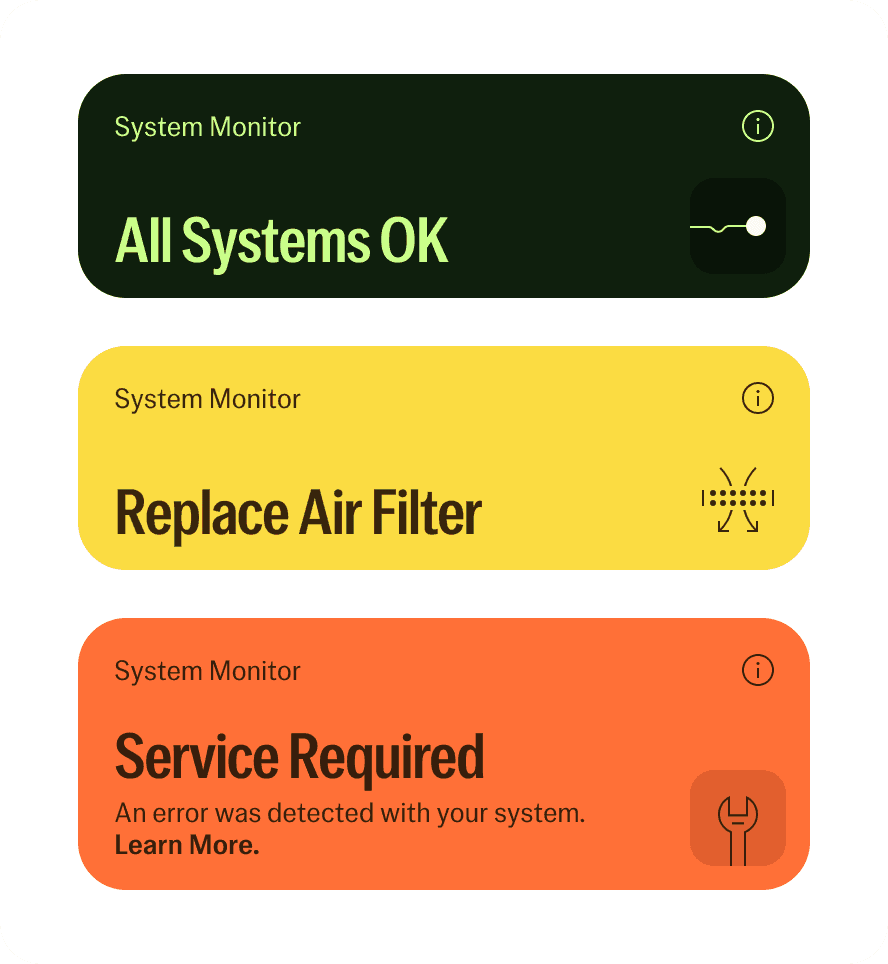
The System Monitor card on the Home tab keeps an eye on your Jetson system's health and connectivity, and lets you know if anything needs attention.
What it monitors:
Status indicators:
Managing Home Members
The Home Members feature lets you manage who has access to your Jetson home system. You can add or remove people and control what level of access they have.
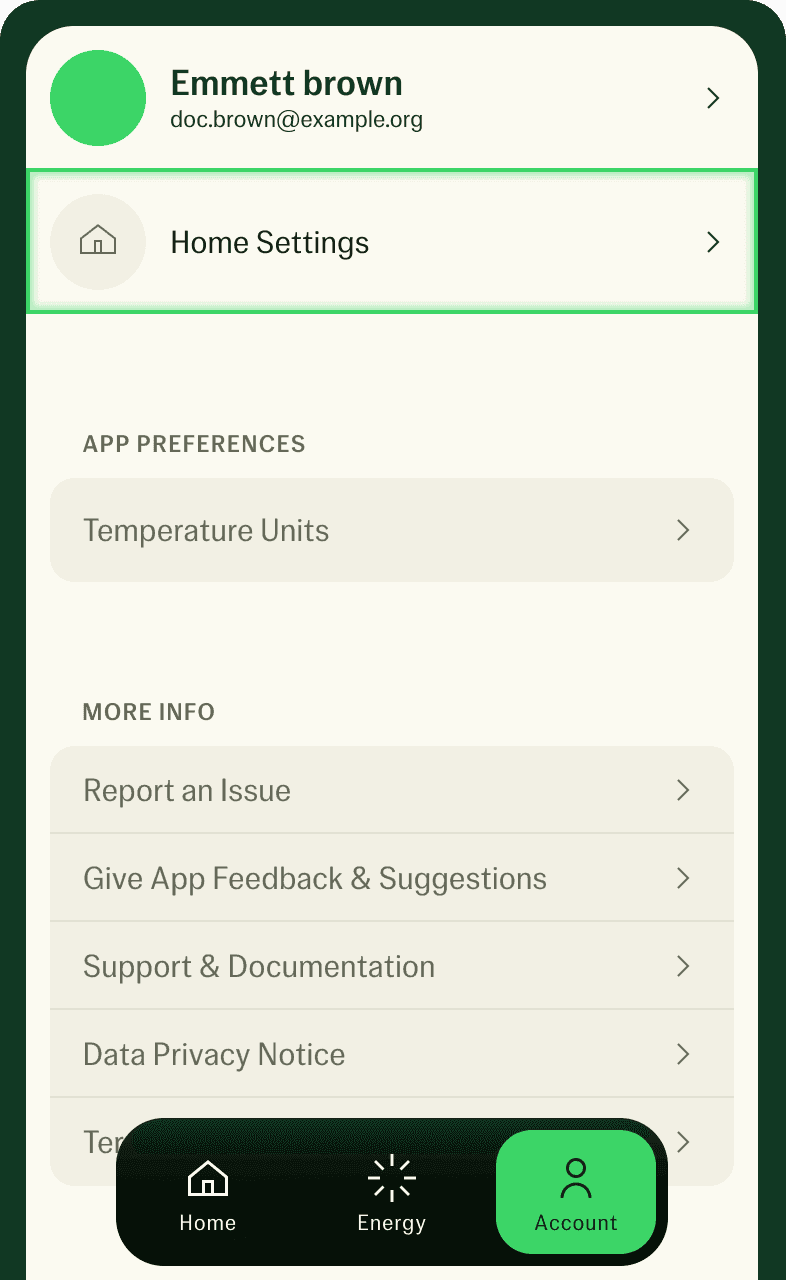
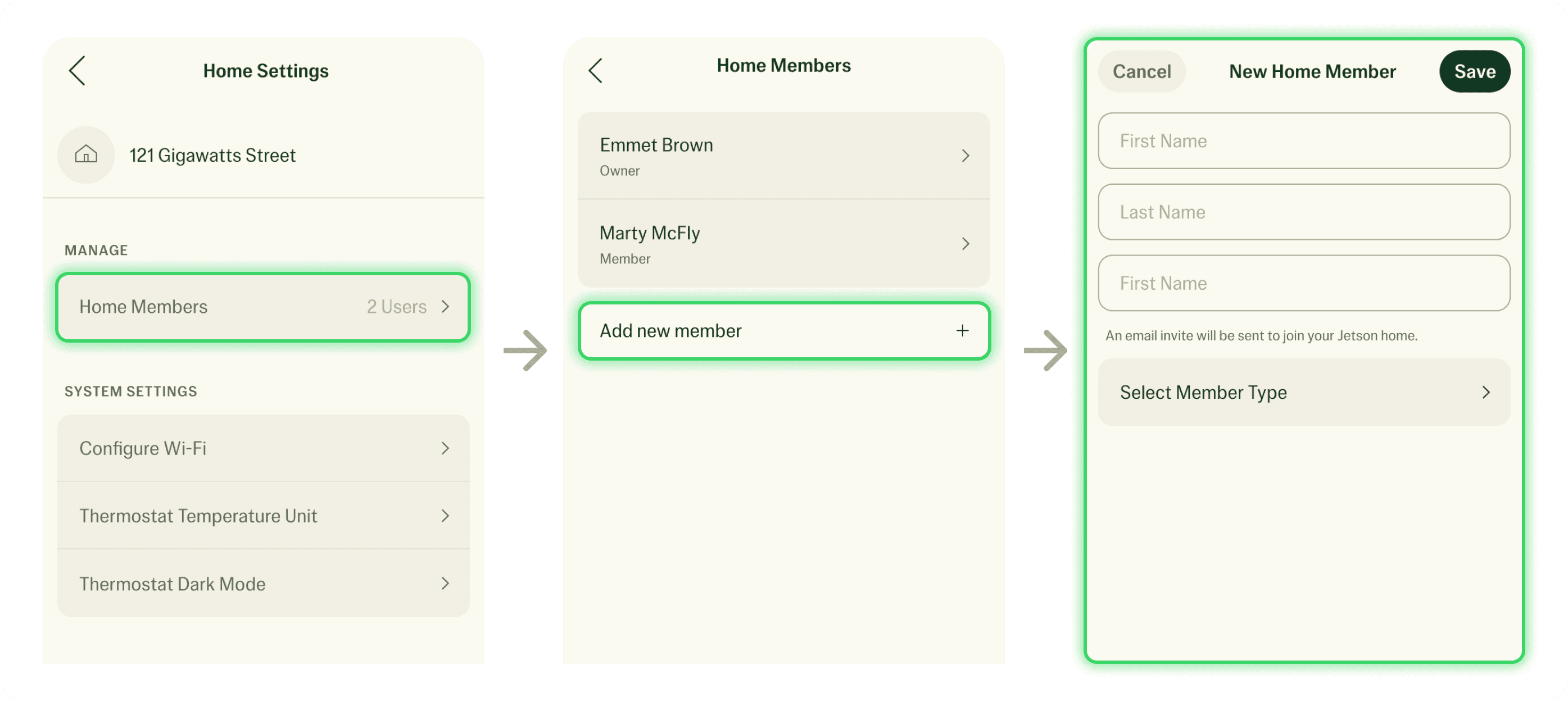
Where to Find Home Members
Home Member management is available from the Account tab.
- Open the Jetson Home App
- Go to the Account tab
- Select Home Settings
- Tap Home Members
Home Member Roles
Each person added to your home is assigned one of two roles. Roles determine what actions they can take in the app.
Adding a New Home Member
To invite someone new to your home:
- From Home Members, tap Add new member
- Enter the person’s first name, last name, and email address
- Select the Member Type (Owner or Member)
- Tap Save
Removing a Home Member
If someone no longer needs access to your home:
- Open Home Members
- Tap the member you want to remove
- Select Remove Member
- Confirm the removal
Once removed, that person will immediately lose access to your Jetson system.
Changing Your Name
You can update your own first and last name in the app.
To change your name:
- Go to the Account tab
- Select your profile
- Edit your First Name or Last Name
- Tap Save
Changing Your Email Address
For security reasons, email addresses cannot be changed after an account is created.
If you need to use a different email address, follow these steps:
- Have an Owner add the new account and email as a Home Member
- Sign in using the new email
- Have an Owner remove the old account from Home Members
Owner
Member
- Can control temperature, modes, and schedules
- Cannot add or remove other Home Members
How to Change the Thermostat Display Brightness
You can choose how your Jetson Thermostat looks when no one is using it. Idle Display and Idle Brightness work together to set this.
Idle Display
Idle Display sets the display style when idle:
To change the idle display:
- From the Jetson Home App, go to the Account tab.
- Go to Home Settings > Idle Display
- Select Standard or Dark and tap Save
Idle Brightness
Idle Brightness sets how bright the display is when idle, from 5% to 40%. It works with both Standard and Dark. Higher brightness makes the thermostat easier to see from across the room.
To change the idle brightness:
- From the Jetson Home App, go to the Account tab.
- Go to Home Settings > Idle Brightness
- Select a brightness level and tap Save
Using Them Together
How to Lock the Thermostat
Thermostat Lock stops anyone from changing the mode, set temperature, or fan speed on the thermostat itself, so those settings can only be changed in the Jetson Home App. It's great for homes with kids.
To turn Thermostat Lock on or off:
- From the Jetson Home App, go to the Account tab.
- Go to Home Settings > Thermostat Lock
- Select On or Off and tap Save
While Thermostat Lock is on:
How to Change the Temperature Unit
You can choose whether temperatures show in Celsius or Fahrenheit. This setting applies to both the Jetson Home App and the Jetson Thermostat.
To change the temperature unit:
- From the Jetson Home App, go to the Account tab.
- Go to Home Settings > Temperature Unit
- Select Celsius °C or Fahrenheit °F and tap Save