The Jetson Thermostat offers simple, intuitive control over your home’s temperature, with visual indicators for mode, temperature, fan, and status.
Thermostat Layout
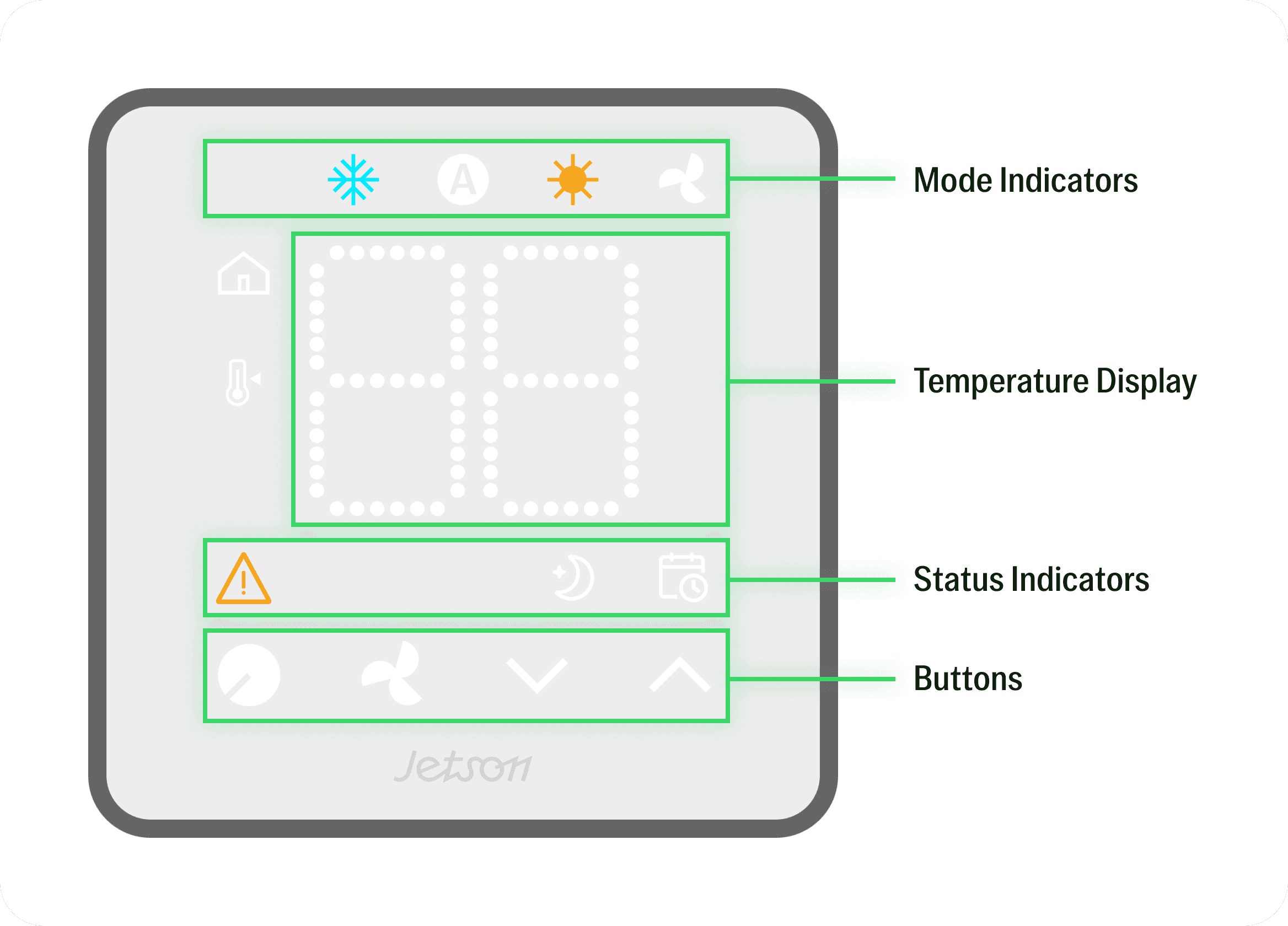
This diagram shows the different parts of your Jetson Thermostat display, including system mode indicators, temperature readings, status icons, and control buttons, so you can understand what each section does at a glance.
Mode & Status Light Indicators
Your Jetson Thermostat uses lights and icons to show what your system is doing. The list below explains what each indicator means and when it appears.
 Cooling Mode — The system mode is set to cool. This light will slowly pulse when your system is actively cooling to reach or maintain your set temperature.
 Auto Mode — Jetson will automatically switch between heating and cooling to maintain your desired temperature range.
 Heating Mode — The system mode is set to heat. This light will slowly pulse when your system is actively heating to reach or maintain your set temperature.
 Fan Only Mode — The system mode is set to fan only. This light will slowly pulse when your system’s fan is running to circulate air, without heating or cooling.
 System Alert — There’s an issue with your system. Check the app for more details or contact support.
 Sleep Schedule Active — Your thermostat is in a sleep schedule, typically with adjusted temperature for overnight comfort and efficiency.
 Other Schedule Active — Your system is following a scheduled routine. You can view or change your schedule in the app.
 Thermostat Lock — Thermostat Lock is on. Mode, set temperature, and fan speed can only be changed in the Jetson Home App.
Temperature Display
Your Jetson Thermostat uses indicators to clearly show both the set temperature and the current indoor temperature. The table below explains what each one means and when it appears.
 Ambient Indoor Temperature — The temperature measured in your home by the thermostat.
 Set Temperature — The temperature your system is set to reach or maintain, also called a target temperature. This is what Jetson adjusts your home towards.
Only one indicator appears at a time, based on what’s being shown:
- Idle State - When the thermostat is idle (no recent user interaction), the display shows the Ambient Indoor Temperature ().
- Active State - When a user adjusts the temperature or changes modes, the display temporarily shows the Set Temperature ().
Thermostat Buttons
Use the buttons on your Jetson Thermostat to adjust the temperature, change system modes, or control the fan. Here’s what each button does.
 Mode Button
Switch between Heating, Cooling, Auto, and Fan Only. Or turn your system completely off.
Toggles the system mode between:
 Cool – Cools your home to the Set Temperature. Occasionally circulates air using your selected fan speed.
 Auto – Automatically switches between heating and cooling to maintain temperature. Good for shoulder seasons where the day is warm and the nights are cool. Fan speed is managed by the system and can’t be set by the user.
 Heat – Heats your home to the Set Temperature. Occasionally circulates air using your selected fan speed.
 Fan Only – Turns on fan for air circulation at the selected fan speed. No heating or cooling is performed.
 Fan Speed Button
Control the fan speed. Your Jetson system will use the fan speed you set when actively cooling or heating your home.
Press to cycle through fan options:

 Set Temperature Buttons
Raise or lower the set temperature. Your Jetson system will work to reach and maintain this temperature.
Press to change the set temperature:
- Tap up () to increase your Set Temperature
- Tap down () to decrease your Set Temperature
Note: These buttons are disabled while in Fan Only mode.
How to View or Change the Temperature
- Press the or buttons on the thermostat.
- Continue to press or to change the Set Temperature appropriately.
How to Tell What Mode Is Active
- Look at the top row of Mode light indicators on the Thermostat:
- Cool
- Auto
- Heat
- Fan Only
How to Know When a Schedule Is Running
Your Jetson Thermostat shows when a schedule is active using on-screen light indicators. These indicators help you quickly see if your system is following a schedule you’ve set in the app, and why the temperature may have automatically changed.
 Sleep Schedule
The Sleep Schedule status indicator appears when your system is running a sleep schedule. This means it’s using your overnight temperature settings to provide comfort and energy savings while you sleep, overriding your regular home temperature.
 Away, Vacation, and Custom Schedules
The Other Schedule status indicator appears when your system is following any other schedule, including Away, Vacation, or a custom routine (like Nap Time).
These schedules automatically adjust your home’s temperature based on the routines you’ve configured in the app. Learn more about creating schedules here.
How to Change the Temperature Unit
You can switch your thermostat between Celsius and Fahrenheit in the Jetson Home App. The setting changes the unit on both the thermostat and the app.
For instructions, see How to Change the Temperature Unit on the Home App page.
How to Adjust Display Brightness
You can adjust how your thermostat looks when it's not in use, including a Dark option for bedrooms and other light-sensitive spaces.
For instructions, see How to Change the Thermostat Display Brightness on the Home App page.
Thermostat Lock
When Thermostat Lock is on, the lock indicator lights up and the thermostat buttons won't change the mode, set temperature, or fan speed. You can still make changes in the Jetson Home App.
To turn it on or off, see How to Lock the Thermostat on the Home App page.